Why does the music stop a few minutes after my phone screen locks while connected to the speaker?
Nothing is wrong with your speaker—your phone's battery saver is killing the music app in the background once the screen goes dark. Let the speaker stream from its USB port instead.
It happens all the time at home or in a small shop: you connect your phone to the stereo, start a playlist, and set the phone face-down on the table. Five or ten minutes after the screen goes black, the room suddenly falls quiet. You walk over, tap the screen to wake the phone up, and the music app is still sitting right there—the moment your finger touches the glass, the song starts playing again. Plenty of people blame the amplifier or think the speaker is overheating.
Your speaker is completely fine; the culprit is the battery-saving software built into your phone. Both Android and iPhone systems watch for when the screen has been locked and untouched, and after a few minutes they quietly put background apps to sleep or cut their network data to save power. Whether you are using Bluetooth or an audio cable, as long as the phone app is the thing pulling the music, a dark screen can choke it off. Digging through buried battery menus to whitelist an app helps for a while, until the next system update resets your settings.
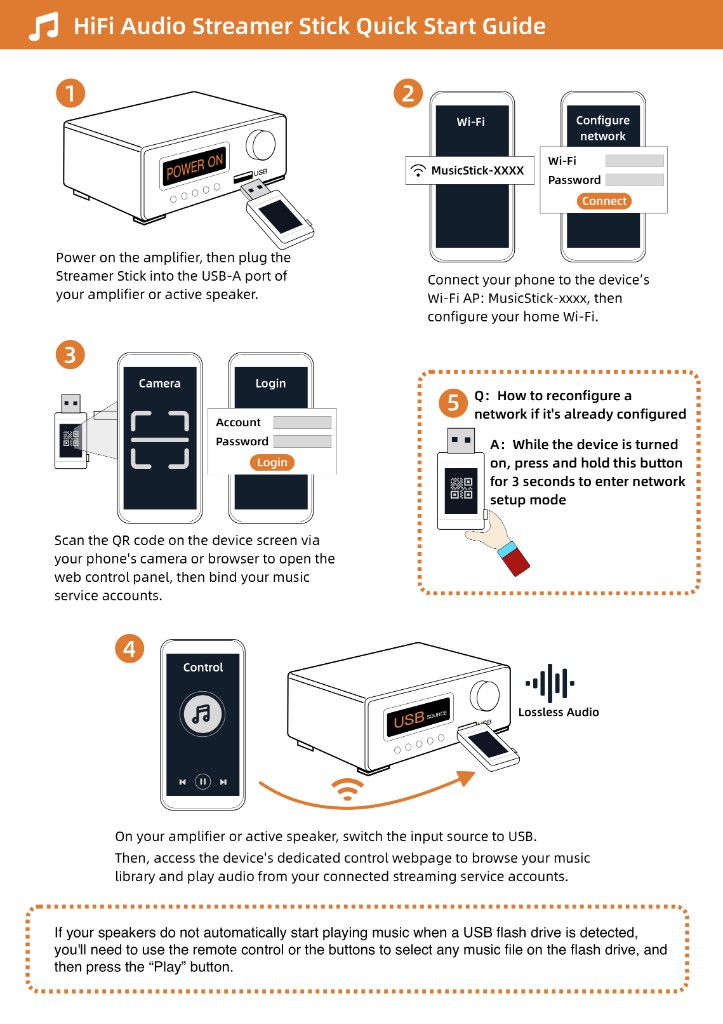
If you want the music to stop depending on whether your phone is awake, stop making the phone do the streaming. First plug an ordinary USB stick with an MP3 on it into your amp's USB port to make sure it plays. Then plug the Raywav Stick into that port, open the web page on your phone, tap the playlist or radio station you want, and lock the phone right away. Because the stick sitting in the amplifier is the device pulling the stream over Wi-Fi, your phone screen can stay black in your pocket all afternoon without stopping a thing. If the music still stops the instant you lock the phone, check that your phone's Bluetooth is turned off so it is not still trying to send audio itself.