Our prayer hall amp stays plugged into a mic — how do we play daily Quran audio without mix-ups?
When a hall amplifier is used for microphones every day, someone often bumps it onto Bluetooth or AUX. Here is how to lock in the USB port and backup stations so daily audio starts on cue.
In a mosque prayer hall or a community room, the amplifier with the microphone inputs gets used almost every single day. Many halls leave a flash drive with Quran recitations plugged into the amp's USB slot year-round and never touch it. Yet a familiar mix-up still happens: the evening before, someone pairs a phone to the amp's Bluetooth for a class or bumps a button on the front panel, leaving the amp switched to Bluetooth or line-in. The next day, when the hall is full and quiet, the person in charge presses play—the USB stick is still sitting right there in the socket, but either nothing comes out of the speakers or someone else's phone audio suddenly blasts into the room.
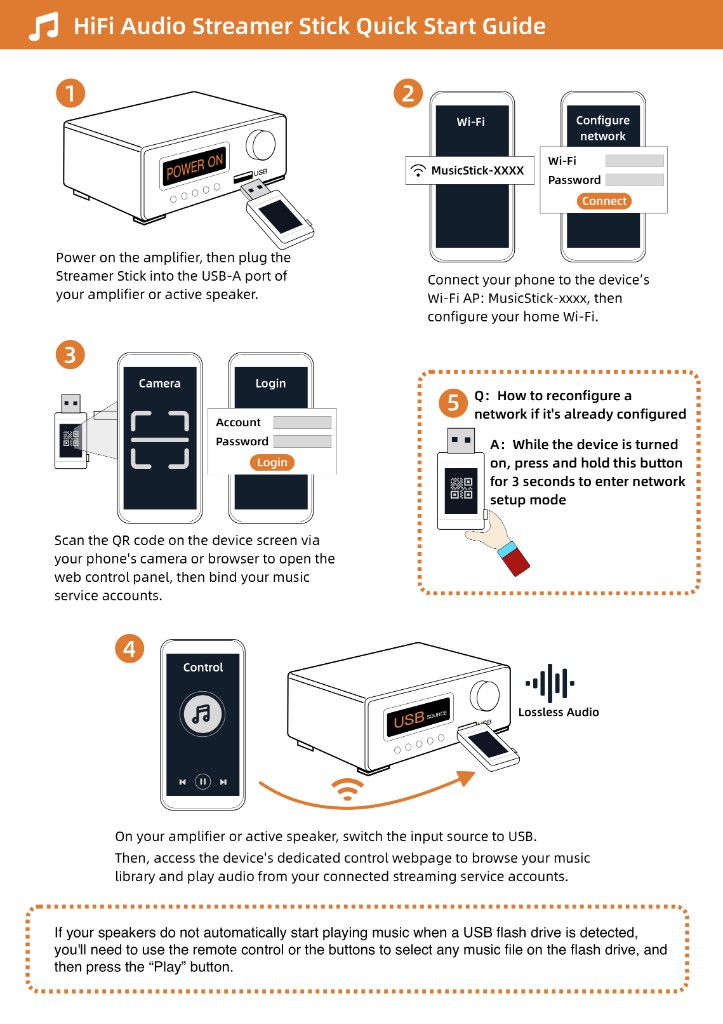
To make sure daily recitations start cleanly every time, glance at the amp's little display before the room fills up and check that the input reads `USB`, and that the port plays a normal `FAT32` MP3 flash drive without trouble. When you plug a Raywav Stick into that USB socket, you can open the browser on a phone, start your regular Quran recitation or religious broadcast, and put the phone away—no risk of an incoming phone call or notification chime breaking into the hall.
Two practical habits save a lot of stress later: first, when you test the Wi-Fi, walk right out into the center of the prayer hall and listen for five minutes instead of just checking that your phone shows full bars by the office door—old buildings have thick walls, and if the stream stutters, pulling the stick slightly out of the metal rack or moving the router closer to the hall doorway fixes it right away. Second, write down one main station name and one backup station name on a slip of paper taped beside the amp, so anyone can switch streams in seconds if a station is down.